 MultiMail
Gmail notifications on Windows 11 fail for one of nine reasons, and they stack: Gmail's own setting, the browser's site permission, Windows' notification switches, Do Not Disturb, and the browser quietly putting your Gmail tab to sleep. Work through this checklist in order — it's sorted by how often each one is the culprit.
Fix 1–2: Gmail's own settings
1. Turn desktop notifications on in Gmail. Open Gmail → gear icon → See all settings → General → scroll to Desktop notifications. It defaults to off. Choose New mail notifications on (or "Important mail" if you use the Priority Inbox), then click the "Click here to enable desktop notifications" link that appears near the top of the section and allow the browser prompt.
2. Check which inbox type you're notifying. "Important mail notifications" combined with Gmail misclassifying your mail means silence. If in doubt, switch to notifications for all new mail and re-test.
Fix 3–5: Browser permission and sleeping tabs
3. Site permission. Click the icon left of the address bar on mail.google.com → Site settings → Notifications → Allow. If it's "Block", no Gmail setting can help.
4. Sleeping tabs — the sneaky one. Chrome's Memory Saver and Edge's sleeping tabs unload background tabs, and an unloaded Gmail can't notify. Either pin the Gmail tab, or exclude it: Chrome → Settings → Performance → Always keep these sites active → add mail.google.com (Edge: Settings → System and performance → "Never put these sites to sleep").
5. Install Gmail as a PWA. Installing Gmail as a PWA (Chrome/Edge menu → install as app) gives it its own window and taskbar identity, which survives tab-sleeping better and makes notification permissions less fragile. Full steps in our Gmail desktop app guide.
Fix 6–8: Windows 11 settings
6. Notifications master switch. Win+I → System → Notifications: the global toggle must be on, and your browser (or the installed Gmail PWA) must be allowed in the per-app list below it.
7. Do Not Disturb and Focus. Windows 11 renamed Focus Assist: check System → Notifications → Do not disturb (including its automatic rules — full-screen apps, screen sharing, gaming) and any scheduled Focus sessions. This is the classic "notifications arrive but never appear" cause.
8. Battery saver / Energy saver. On laptops, energy saver modes throttle background activity — including the browser processes that fire notifications. If alerts die only on battery, this is why.
Fix 9: Take the browser out of the loop
If you've fixed everything twice and Gmail alerts still ghost you — or you juggle several accounts and can't tell which one rang — the structural fix is to stop depending on the browser for notifications altogether.
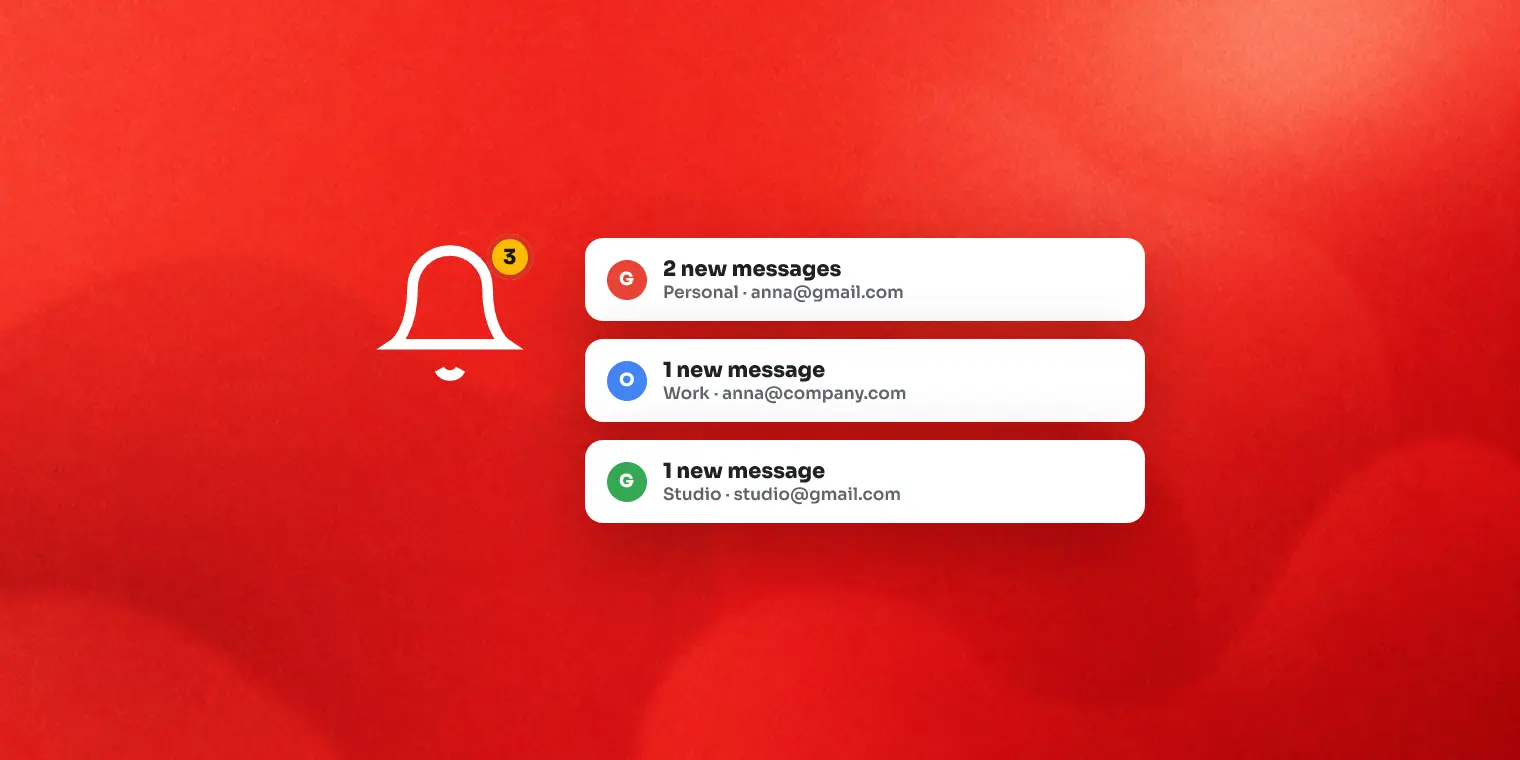
Full transparency, this is where our app plays: MultiMail watches each Gmail and Outlook inbox itself and shows its own toast popups with the account's name and icon, independent of any browser setting, sleeping tab or site permission. It keeps working from the system tray, with per-account mute and snooze when you want quiet. Honest limits: its notifications cover Gmail and Outlook accounts (plus its built-in webmail) — not every provider it can display — and the app must be running (tray counts). Free for 2 accounts.
FAQ
Do Gmail notifications work when the browser is closed?
No. Browser-based Gmail notifications require the browser to be running and the Gmail tab (or installed PWA) to be loaded. If you need alerts with no browser open, you need an email client or a desktop app that watches your inbox itself.
Why do I get Gmail notifications on my phone but not my PC?
The phone's Gmail app registers with the system for push notifications; on a PC, Gmail relies on the browser, which must be running, with the site's notification permission granted, and not suppressed by Do Not Disturb. Any one of those failing kills desktop alerts while the phone keeps buzzing.
How do I get a sound with Gmail notifications?
In Gmail: Settings → See all settings → General → Desktop notifications, and set a sound under "Notification sounds" if your browser allows it. Windows also plays its own notification sound if enabled under Settings → System → Notifications for your browser.
Can I get per-account notifications for multiple Gmail accounts?
Not from the browser — notification permission belongs to mail.google.com as a site, so alerts don't say which account fired. Apps that isolate accounts can attach the account's name and icon to each notification.
Key takeaways
- Gmail desktop notifications default to OFF — start at Gmail's General settings
- Three permission layers must all agree: Gmail → browser site permission → Windows per-app toggle
- Memory Saver / sleeping tabs silently unload Gmail — exclude or pin it
- Do Not Disturb auto-rules (full-screen, screen share) suppress toasts without telling you
- For multi-account setups, browser notifications can't say which account rang — app-level watching can
We build MultiMail — a Windows app that puts all your webmail accounts in one window. Learn more.