 MultiMail
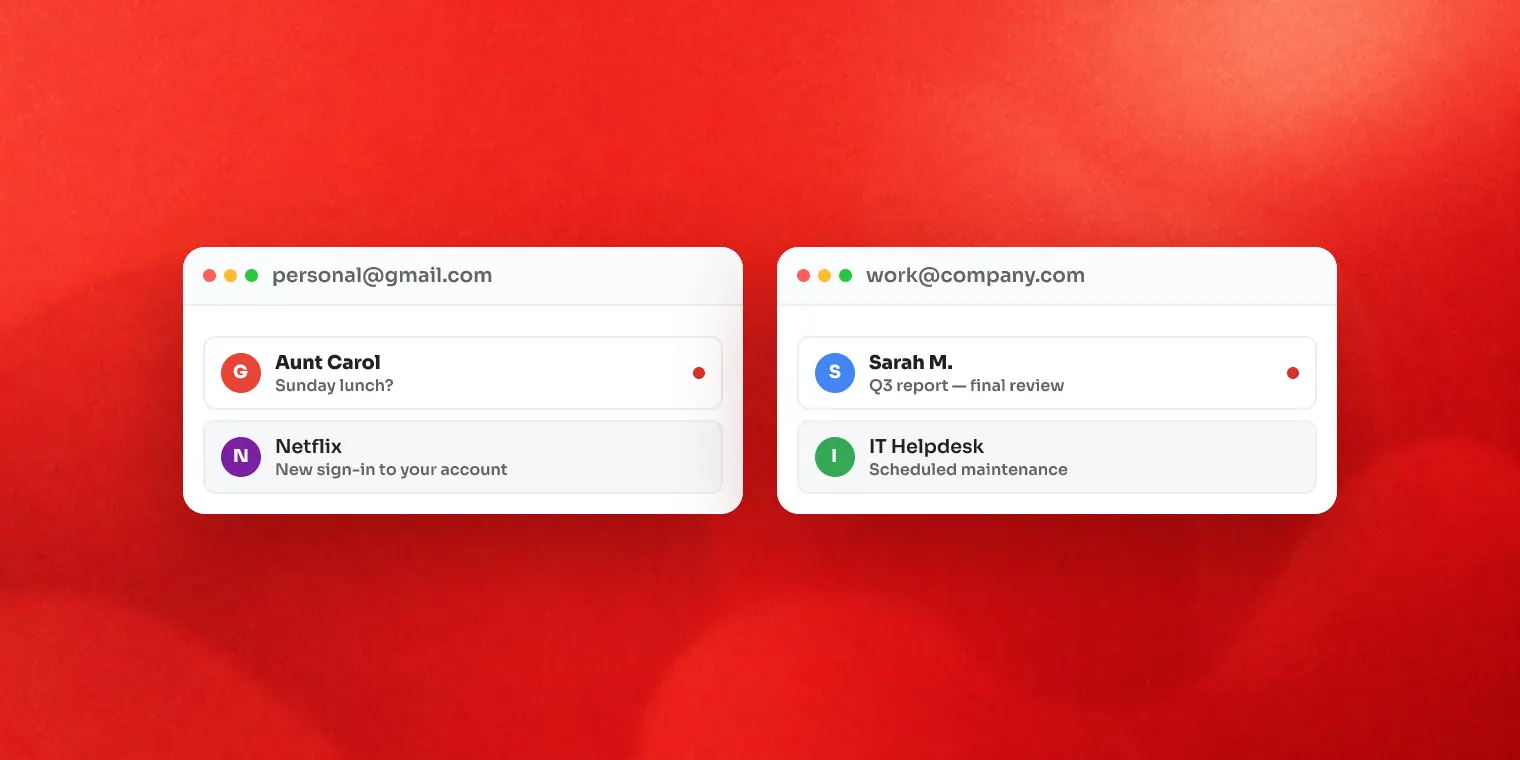
Gmail's built-in account switcher can't show two inboxes at the same time — it swaps one inbox for another inside the same tab. To truly open two Gmail accounts side by side on Windows you need two independent sessions, and there are four ways to get them: Chrome profiles, a second browser, incognito, or a desktop app that isolates each account.
Here are all four, from free-and-fiddly to paid-and-comfortable.
Why this is harder than it should be
A browser keeps one cookie jar per profile. Sign in to a second Gmail account and both accounts now live in the same session — Google interleaves them under one login state. That's why the switcher exists, why you can't watch two inboxes at once, and why account #2 sometimes vanishes after a password change or session refresh. The fix, whatever tool you choose, is always the same principle: session isolation — one cookie jar per account.
What the account switcher can (and can't) do
Click your avatar in Gmail → Add another account. This is fine for occasionally peeking at a second inbox, and it's the only method that needs zero setup.
- Can: quick switching in one tab; each account keeps its own inbox, labels and sent mail.
- Can't: two inboxes visible at once; separate notifications per account; reliable long-term sessions. And the "wrong sender" mistake — replying from the account you happened to have open — is easiest to make here.
Method 1: Chrome or Edge profiles (free, the standard fix)
Create one browser profile per account: click your avatar in Chrome → Add new profile → sign in to the second Gmail there. Each profile has its own cookies, so the accounts are truly independent. Open both profiles, snap the windows with Win + Left and Win + Right, and you have two Gmails genuinely side by side.
- Pros: free, real isolation, each profile can have its own extensions and theme.
- Cons: one full browser window per account (with five accounts this stops scaling), notifications only fire while that profile's browser runs, and switching means hunting through the taskbar.
Method 2: A second browser or incognito (free, quick and dirty)
Sign in to account A in Edge and account B in Chrome (or Firefox) — different browsers never share sessions. For a one-off check, an incognito/InPrivate window does the same job with zero setup, at the cost of signing in every time and getting no notifications at all.
This works, but as a permanent workflow it means maintaining two browsers' settings, extensions and updates just to read email.
Method 3: One app, isolated sessions
The remaining option moves the whole problem into a purpose-built desktop app — a webmail wrapper that gives every account its own isolated session inside one window.
That's what our app MultiMail does, so concretely: you add each Gmail (or Outlook, Yahoo, and 40+ other services), each lives in its own container, and you flip between them with Ctrl+1–9 or Ctrl+Tab. Honest framing: MultiMail shows one inbox at a time in its window — it solves the isolation and switching problem, not literal split-screen. If you truly need two inboxes visible at once, pair it with a browser profile for the second one, or snap two of the free methods above. Desktop toasts carry the account's name and icon (for Gmail and Outlook accounts), so you know which inbox rang before you look. Fair print: it's the live web interface — no offline mail — and the free tier covers 2 accounts with a small promo banner, which happens to be exactly the "two Gmails side by side" use case.
Which method fits you
| You | Best method | Why |
|---|---|---|
| Peek at a second inbox weekly | Account switcher | Zero setup beats everything else |
| Two accounts, daily, free | Browser profiles | Real isolation, costs only window clutter |
| One-off login on a shared PC | Incognito | Leaves no session behind |
| 3+ accounts, or you live in email | Isolated-session app | One window, per-account notifications, keyboard switching |
FAQ
Can I be signed in to two Gmail accounts at the same time?
Yes — Gmail's account switcher lets you add several accounts in one browser. But they share one session: you see one inbox at a time, and the accounts occasionally sign each other out. For two inboxes visible at once you need separate sessions: two profiles, two browsers, or an app that isolates accounts.
Why does Gmail keep signing out my second account?
Because all accounts added via the switcher live in the same browser session and share cookies. When Google refreshes or invalidates the session, every account in it is affected. Separate browser profiles or isolated sessions per account solve this.
Can each Gmail account have its own notifications?
In a browser, notifications are granted per site, not per account — so you can't tell which account triggered a Gmail alert. Desktop apps that isolate accounts can label each notification with the account's name and icon.
Does Gmail have a split-screen view for two accounts?
No. Gmail itself shows one account per tab. Side-by-side means two separate windows — snap them with Win + Left / Win + Right once you have two independent sessions open.
Key takeaways
- The switcher swaps inboxes; it never shows two at once
- Side by side = two independent sessions + Win+Left / Win+Right
- Browser profiles are the best free answer; they stop scaling around 3+ accounts
- Whatever you pick, make sure each account keeps its own cookie jar
We build MultiMail — a Windows app that puts all your webmail accounts in one window. Learn more.