 MultiMail
Microsoft retired the Windows Mail & Calendar app at the end of 2024 and moved everyone to the new Outlook — and if you're reading this, the move probably didn't go well for you. The good news: you have several genuinely better options, and which one fits depends mostly on how many accounts you run and whether you want your mail synced locally or live from the web.
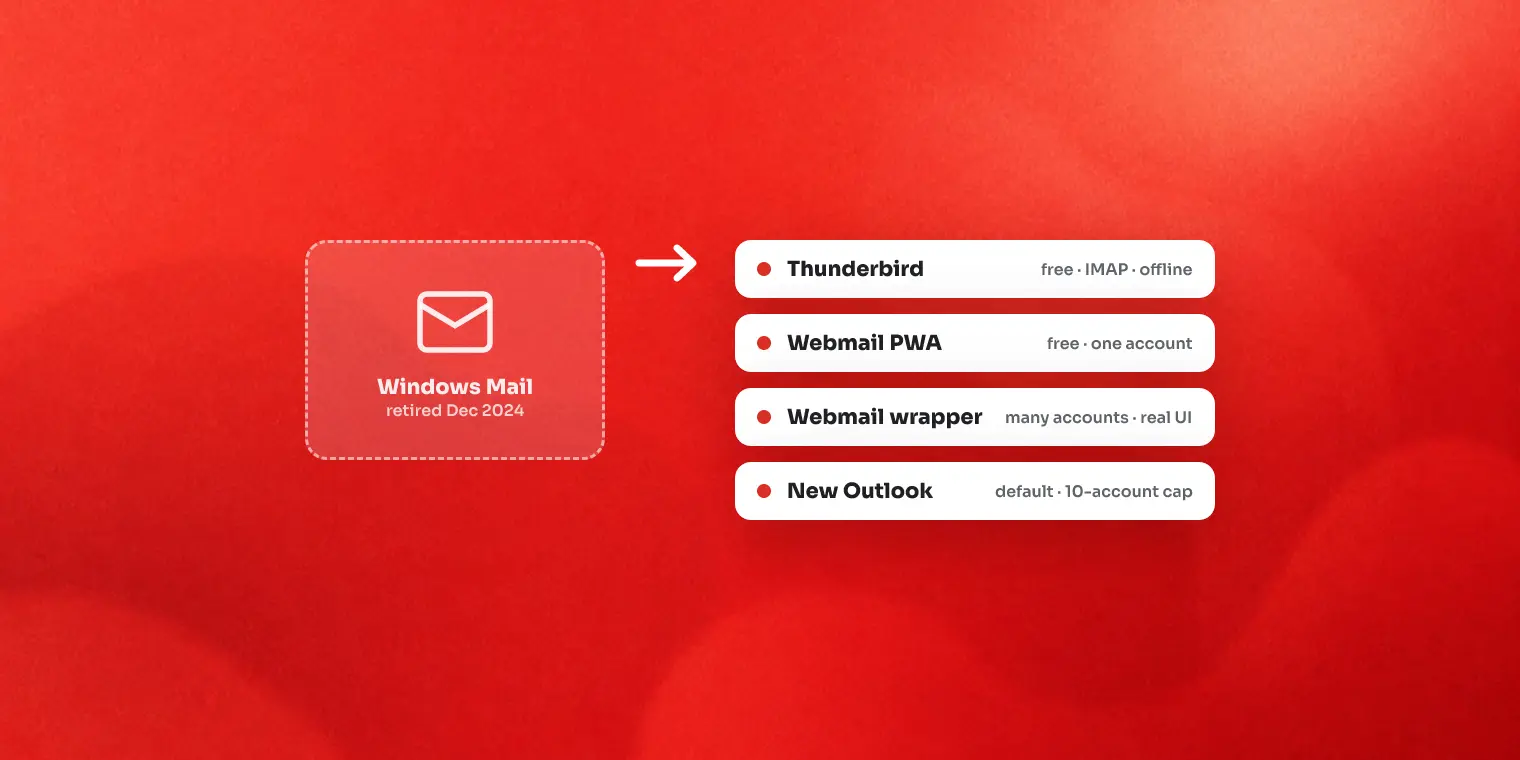
What happened to Windows Mail
Support for Mail & Calendar ended on December 31, 2024. The app was removed from the Store, and opening it migrates you to the new Outlook for Windows — a web-based app that replaces the old native one. For many people the migration is fine. For heavy users, two things hurt: the new Outlook caps you at 10 email accounts (a documented, non-configurable limit), and the UI trades the old app's speed and simplicity for Outlook's heavier, more click-happy layout.
Why people bounce off the new Outlook
- The 10-account ceiling. Confirmed by Microsoft as by-design; the workarounds (classic Outlook via Microsoft 365, or multiple Windows user profiles) are worse than the disease for most people.
- It's a web app in a shell — noticeably slower to open and navigate than the old native Mail.
- More clicks for the same tasks, and features moved or renamed compared to both old Mail and classic Outlook.
If none of these bother you, the new Outlook is a perfectly serviceable default — stop here and save yourself an install. Otherwise:
Option 1: Thunderbird — the free, keep-my-mail-local choice
Mozilla's Thunderbird is free, open source, and connects any provider over IMAP. You get local mail storage, offline access, cross-account search and a unified inbox — the full classic email client experience, with no account limits.
The trade-off is character: Thunderbird replaces your provider's interface with its own, setup involves choices the old Mail app never asked you to make, and its density can feel like a step up in complexity rather than down.
Option 2: Commercial email clients
Apps like Mailbird and eM Client sit between Thunderbird's power and old Mail's simplicity: polished interfaces, unified inboxes, calendars and integrations, sold as subscriptions or one-time licenses with free tiers or trials to start. If you want a traditional synced client but found Thunderbird clunky, this category is where to look — compare current pricing on their sites, as tiers change often.
Option 3: Webmail as a PWA — the minimalist's answer
If the old Mail app was mostly "a window with my one inbox in it", you can recreate exactly that for free: install Gmail or Outlook.com as a PWA from Chrome or Edge. One icon, one window, the provider's real interface. The limits appear when you add more accounts — PWAs share the browser's session — and with notifications, which stay hostage to browser and Windows settings. Our Gmail desktop app guide covers the PWA setup step by step.
Option 4: A webmail wrapper — for the multi-account webmail crowd
If your accounts are Gmail, Outlook.com, Yahoo and friends — and what you disliked about old Mail was juggling them — a webmail wrapper flips the model: instead of syncing mail into a new interface, it shows each provider's real web interface in one window, each account in its own isolated session.
That's our category, so with cards on the table: MultiMail gives every account its own container (no 10-account ceiling — unlimited on the paid tier, 2 accounts free with a small promo banner), Ctrl+1–9 switching, and desktop toasts with the account's name and icon for Gmail and Outlook accounts. What it deliberately doesn't do: offline mail, local search, or a unified inbox — it's the live web, organized. If those are must-haves, pick Thunderbird or a commercial client above instead.
Pick by user type
| You | Best fit |
|---|---|
| One account, loved old Mail's simplicity | Webmail PWA (free) |
| Want offline mail, local archive, any provider | Thunderbird (free) |
| Want a polished synced client, will pay | Mailbird / eM Client tier |
| Many webmail accounts, want the real Gmail/Outlook UI | Webmail wrapper (MultiMail) |
| Under 10 accounts and no strong feelings | Stay on new Outlook |
FAQ
Is the Windows Mail app coming back?
No. Microsoft ended support for Mail & Calendar at the end of 2024 and directs everyone to the new Outlook for Windows. The old app is no longer available or updated.
How many accounts does the new Outlook support?
The new Outlook enforces a limit of 10 email accounts per profile, across all account types. Microsoft has confirmed in its Q&A forums that this is by design and not configurable in settings.
Do I have to pay for an alternative?
No. Thunderbird is completely free and open source, Gmail/Outlook.com work free in any browser or as PWAs, and several commercial apps — including MultiMail — have free tiers. Paid tiers mostly buy you more accounts or extra tools.
What's the closest thing to the old Mail app's simplicity?
For a single account, installing your webmail as a PWA gets closest: one icon, one window, no sync setup. For several accounts, a lightweight client or a webmail wrapper replaces the old Mail app's role better.
Key takeaways
- Windows Mail is gone for good — the new Outlook is the default, not the only option
- The 10-account limit is real, documented, and not configurable
- Decide on the axis that matters: synced local mail (client) vs live web interface (PWA/wrapper)
- Every option here has a free way to try it — test before settling
We build MultiMail — a Windows app that puts all your webmail accounts in one window. Learn more.